 Shopify Integration
Connect Your Shopify Store with
365CRM
Seamlessly route Shopify order-created events and storefront contact form inquiries directly into 365CRM. Automate lead capture, normalize contact numbers, and streamline your customer management.
Automate Store Orders & Contact Leads
Connect your Shopify store directly to 365CRM using documented Shopify Flow triggers and storefront contact form synchronization.
Shopify Flow Order Trigger
Configure the native Shopify Flow app to listen for Order Created events, automatically executing an HTTP POST action to send customer order details directly to your 365CRM endpoint.
Storefront Form Lead Capture
Capture visitor inquiries directly from your Shopify theme contact form. An asynchronous background script posts the lead details into 365CRM without interrupting standard Shopify email delivery.
Smart Phone & Attribution Rules
Automatically normalize 10- and 11-digit phone numbers with a configurable country code (default 91) and attribute inbound inquiries with custom CRM lead labels (default shopify).
How the Integration Operates
The integration provides two distinct, documented paths to transmit customer data from Shopify into 365CRM.
Order Created Automation
Uses the official Shopify Flow automation engine inside your Shopify store admin to send transaction events upon checkout completion.
Customer Completes Purchase
Shopify registers the checkout and raises the native Order Created trigger event.
Shopify Flow Executes Action
The workflow triggers the Send HTTP request action configured with your CRM endpoint.
Secure Secret Authentication
Flow securely attaches the crm_api_key secret to authorize the request without exposing keys.
365CRM Ingestion
The 365CRM endpoint receives and parses the order event, logging the customer and order details.
Theme Contact Form Integration
Uses a lightweight Liquid & JavaScript snippet inside your Shopify theme to capture inquiries submitted via #ContactForm.
Visitor Submits Contact Form
The shopper inputs their name, email, phone number, and message on your Shopify store contact page.
Mobile Format Normalization
The script sanitizes digits and formats numbers with the configured default country code (e.g. 91).
Resilient Background Dispatch
An asynchronous POST request with keepalive: true transmits the JSON lead payload to 365CRM.
Uninterrupted Submission
The standard Shopify contact form submission and customer email notification proceed normally.
Shopify Flow & 365CRM Setup Guide
Follow this step-by-step implementation guide to configure 365CRM Website Lead Integration and automate Shopify store order capture with Shopify Flow.
365CRM Lead Integration Configuration
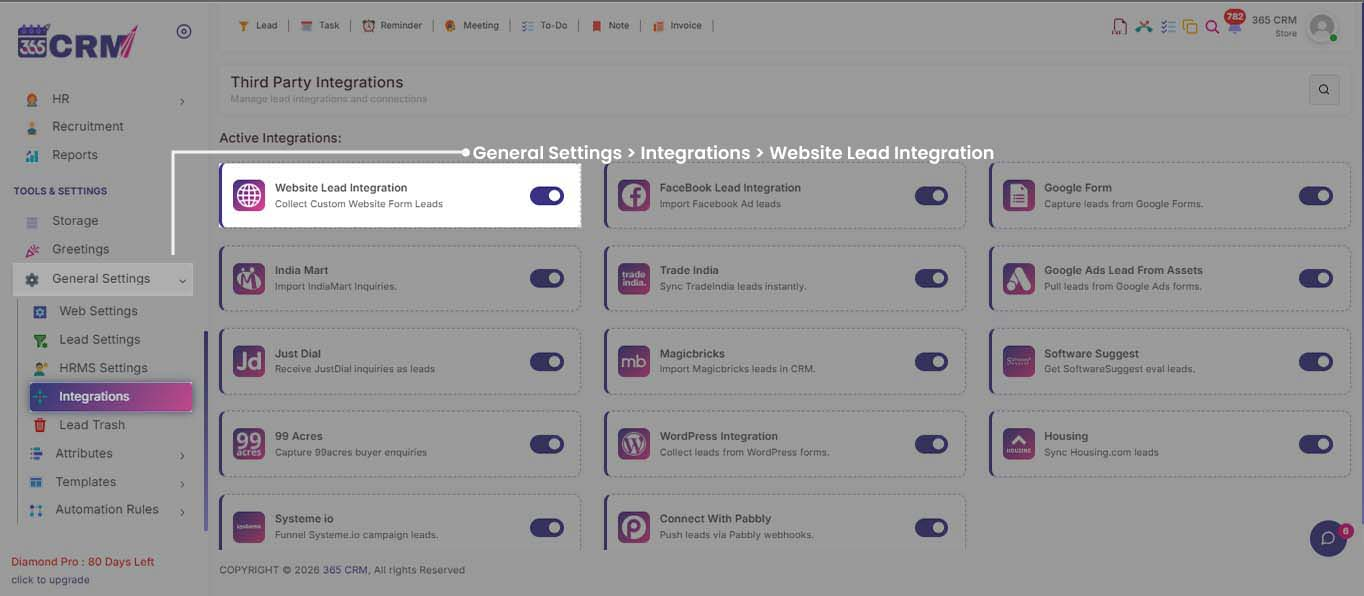
Configure lead labels and routing parameters in your 365CRM accountLog in to your 365CRM dashboard, open General Settings from the navigation menu, select Integrations, and click on Website Lead Integration to access integration endpoints and credentials.
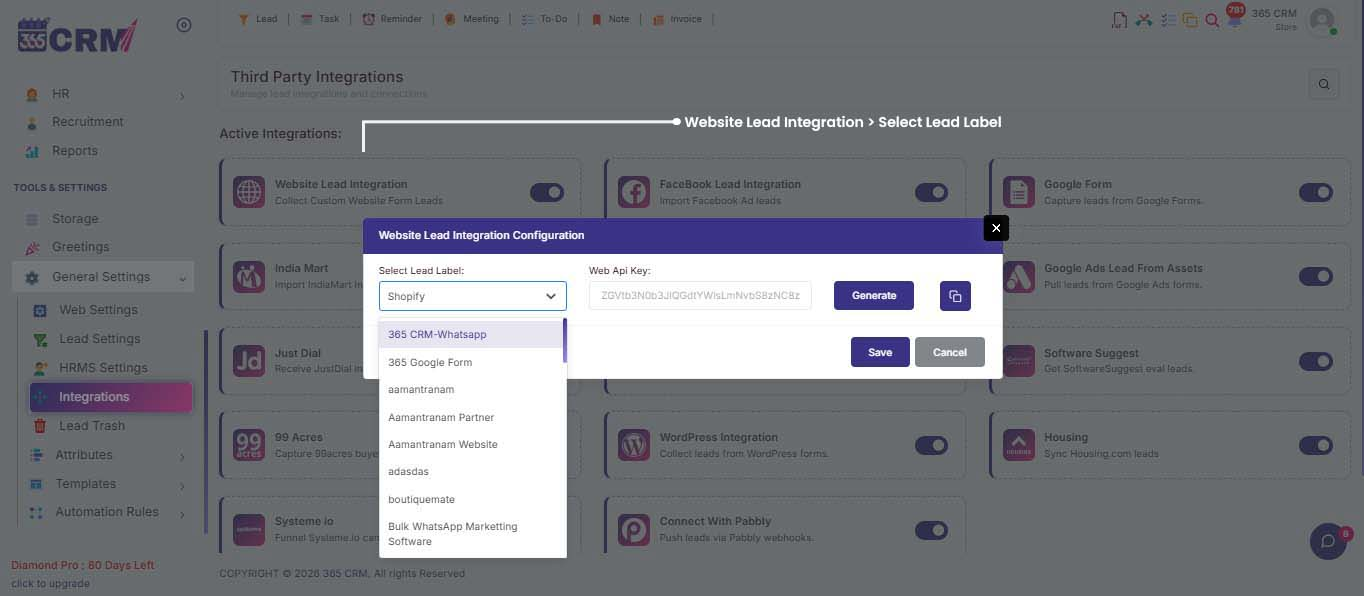
Under Website Lead Integration settings, locate the Lead Label dropdown. Choose or assign your designated Shopify lead label (e.g. shopify) to classify and route incoming store leads.
Shopify Flow App Installation
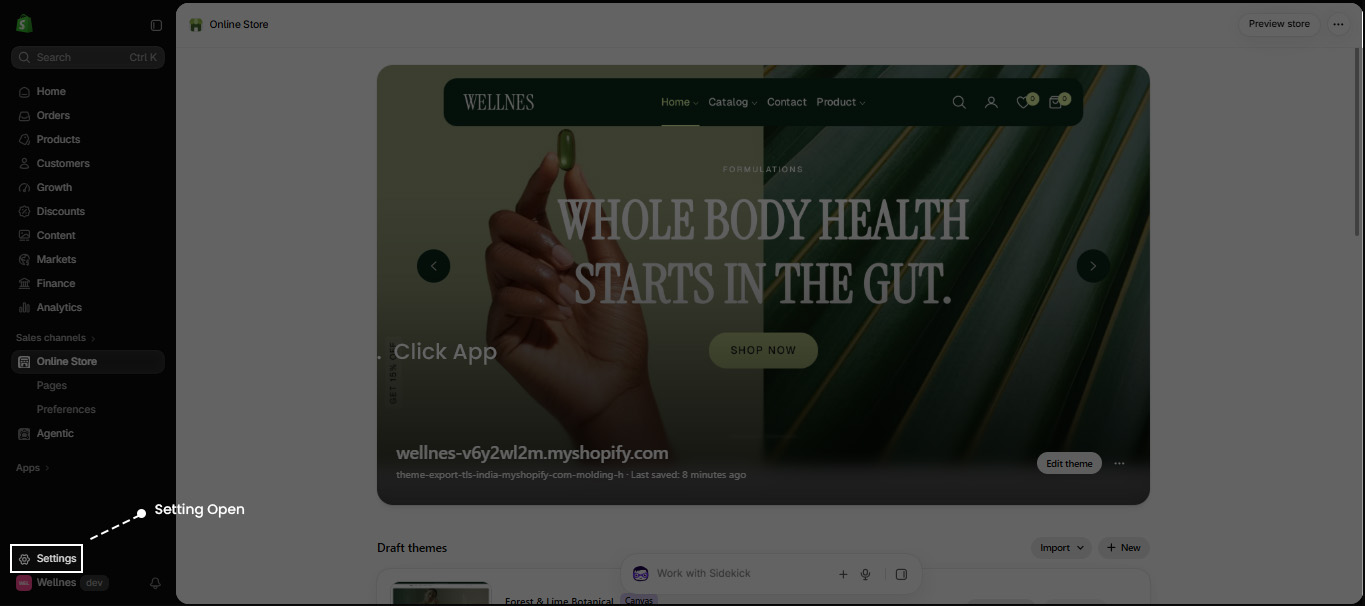
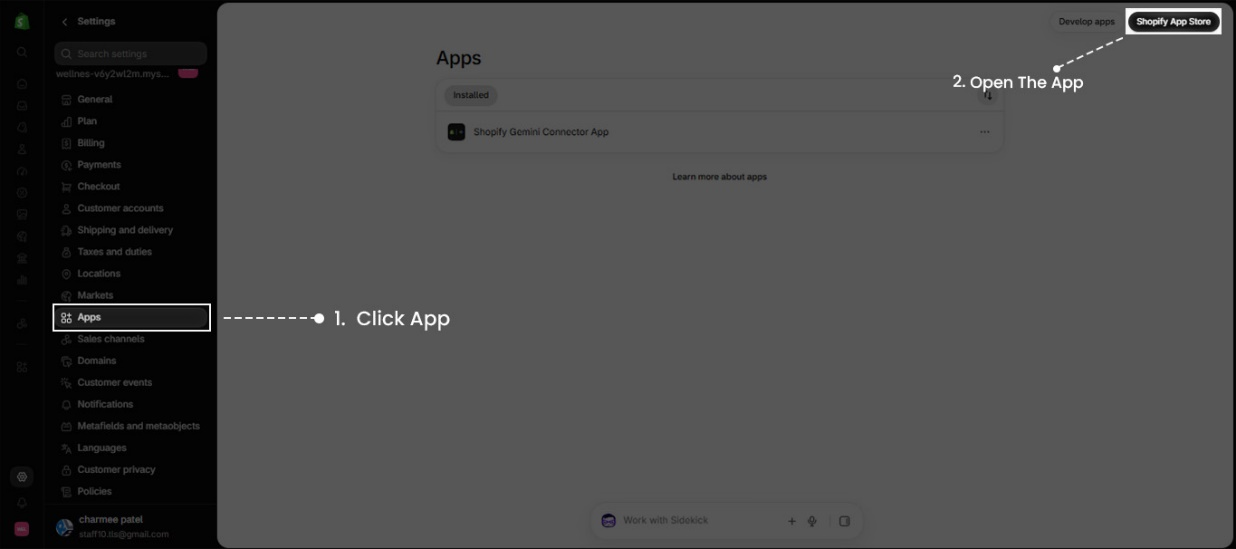
Install the official Shopify Flow automation app from the Shopify App StoreLog in to your Shopify store admin panel. In the left-hand navigation sidebar at the bottom left, click on Settings to access store management options.
In the Settings sidebar, navigate to Apps and sales channels and click on the Shopify App Store button to open the store repository.
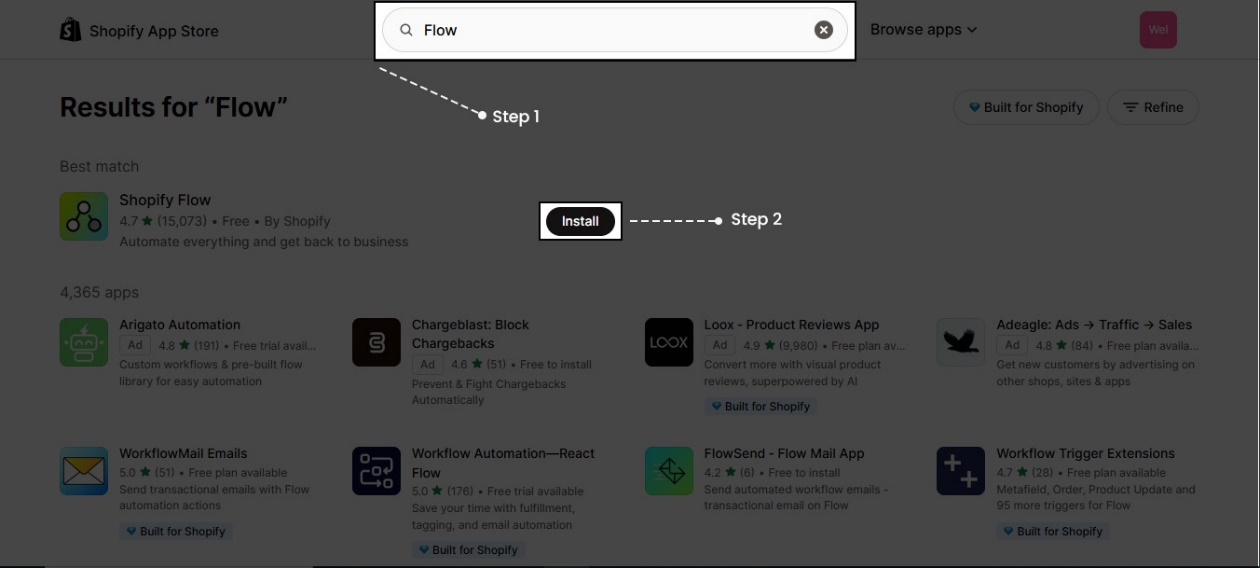
Search for Flow in the Shopify App Store, select the official Shopify Flow application by Shopify, and click Install to add it to your store.
Secure API Key Secret Configuration
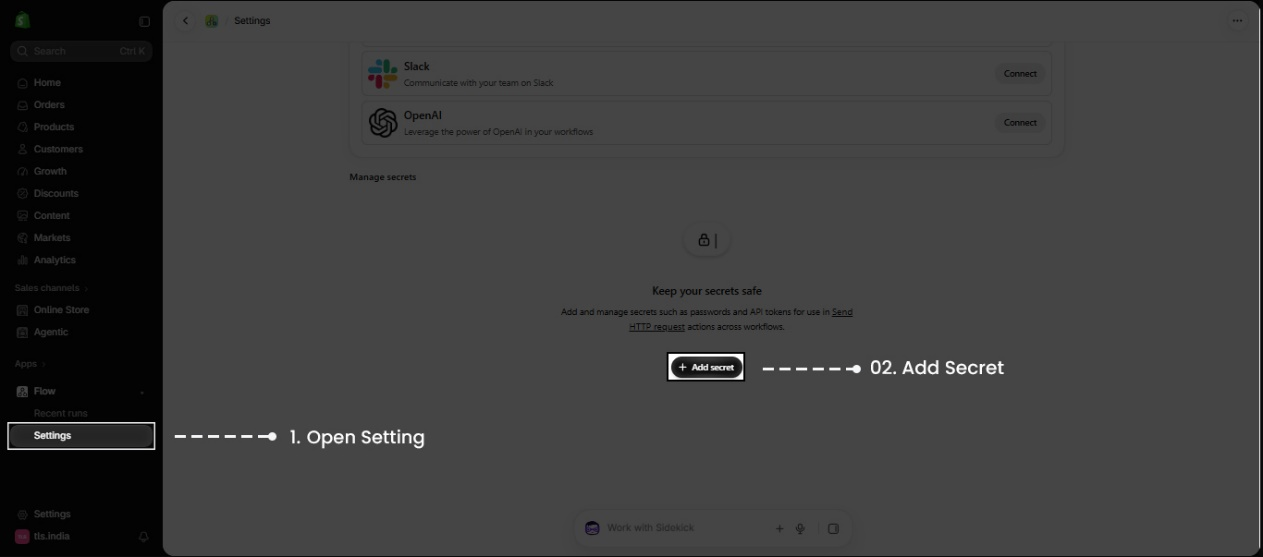
Store your 365CRM authentication key securely inside Shopify Flow settingsOpen the installed Shopify Flow app from your Shopify store admin, click on Settings in the top navigation bar, and select Add secret.
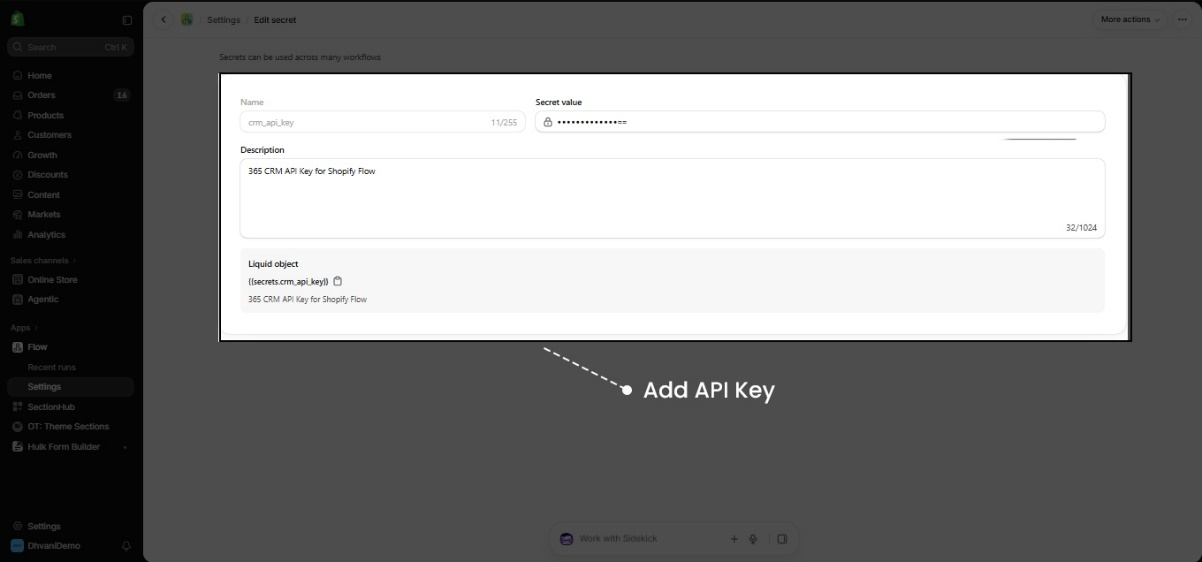
Set Name to crm_api_key, enter your 365CRM API Key into Secret value, and set description to 365 CRM API Key for Shopify Flow. Click Save secret.
Workflow Creation & Trigger Setup
Create a new Flow automation and select the Order Created trigger eventReturn to the main Shopify Flow dashboard and click the Create workflow button in the top right corner to open the automation canvas.
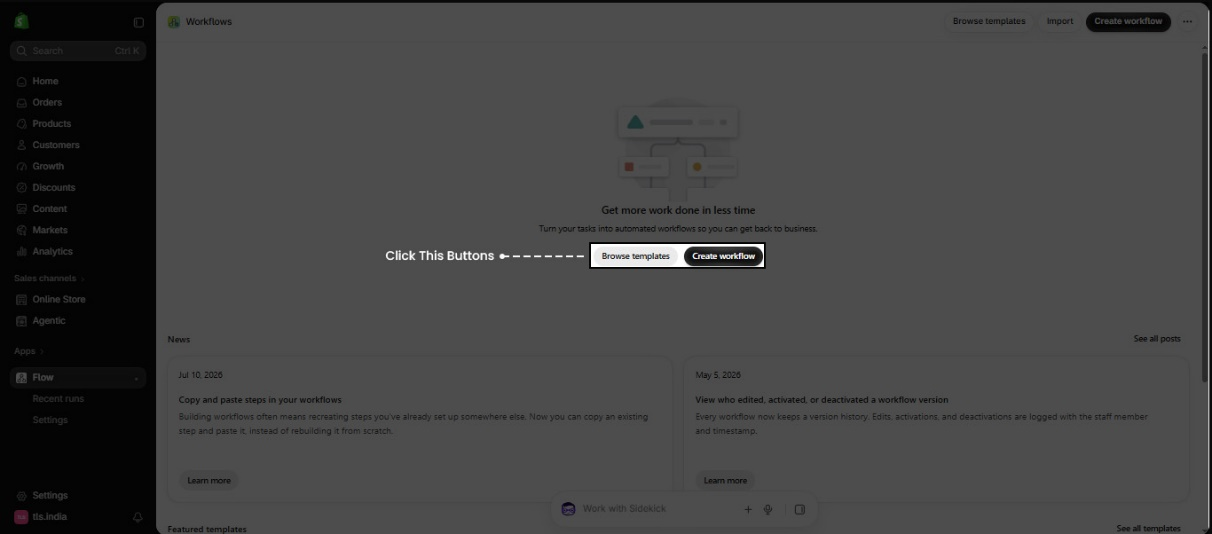
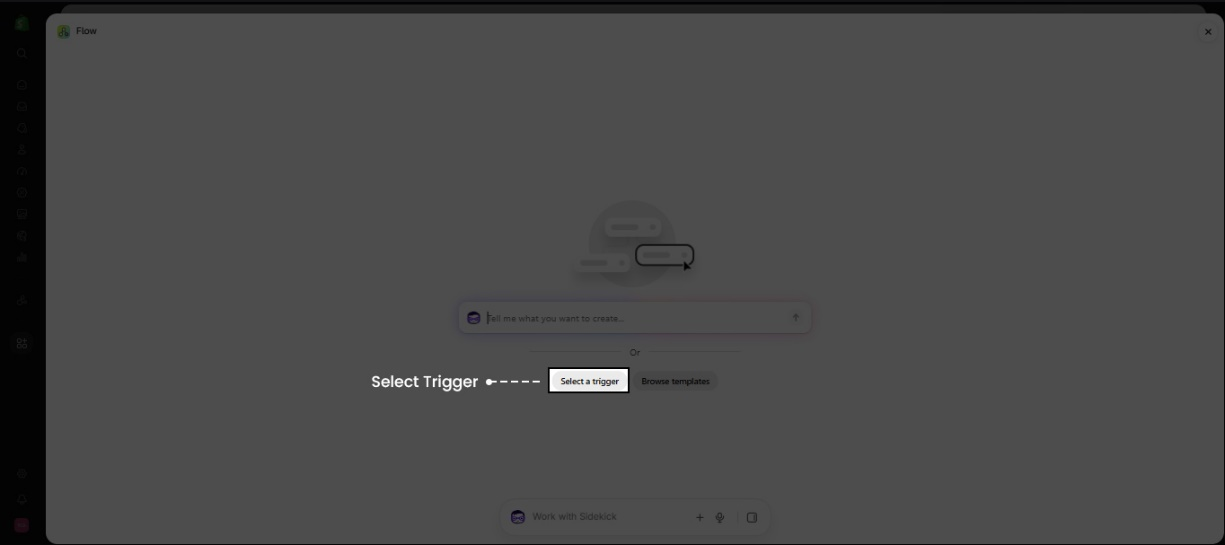
On the workflow canvas, click on the starting block labeled Select a trigger to open the trigger selection panel on the right sidebar.
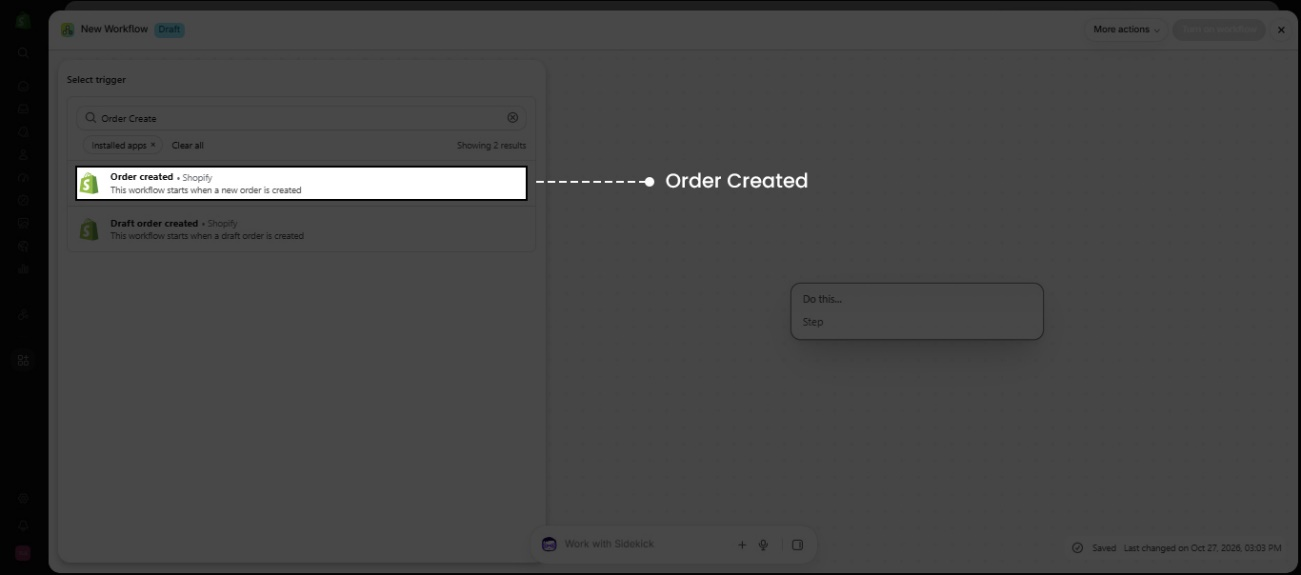
In the trigger search field, search for Order created under Shopify and select Order created as the event that begins this workflow when orders are placed.
HTTP Request Action & Endpoint Configuration
Configure the Send HTTP request action with 365CRM endpoint URL, headers, and request bodyClick the Then connector branch on the Order Created trigger block and select Action to specify the follow-up task when the order event fires.
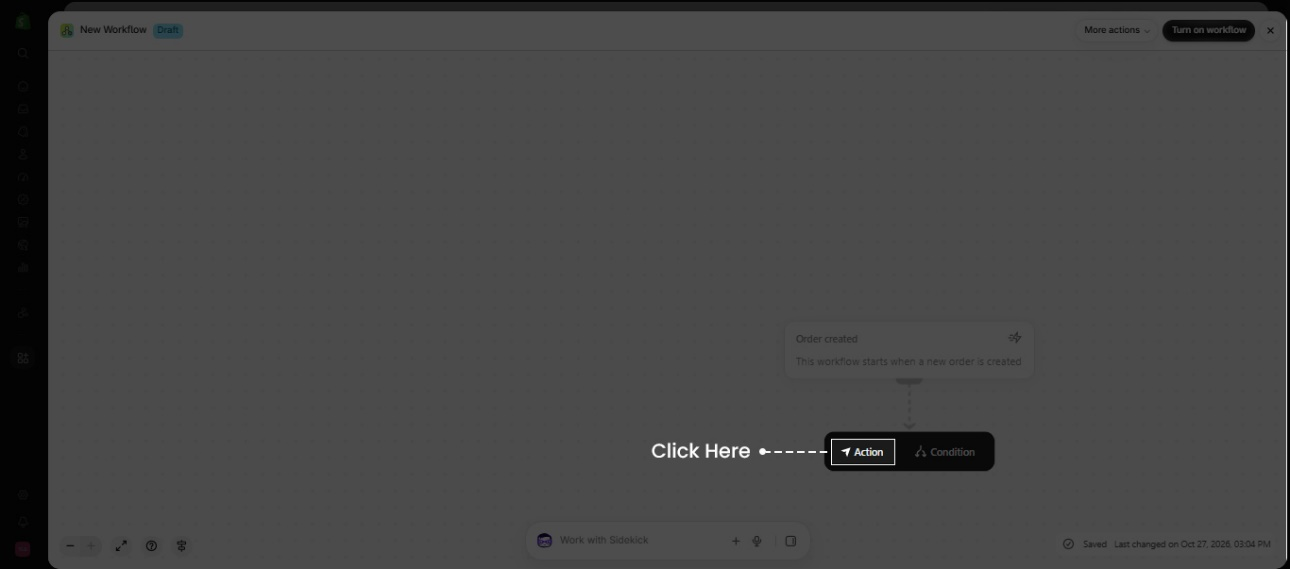
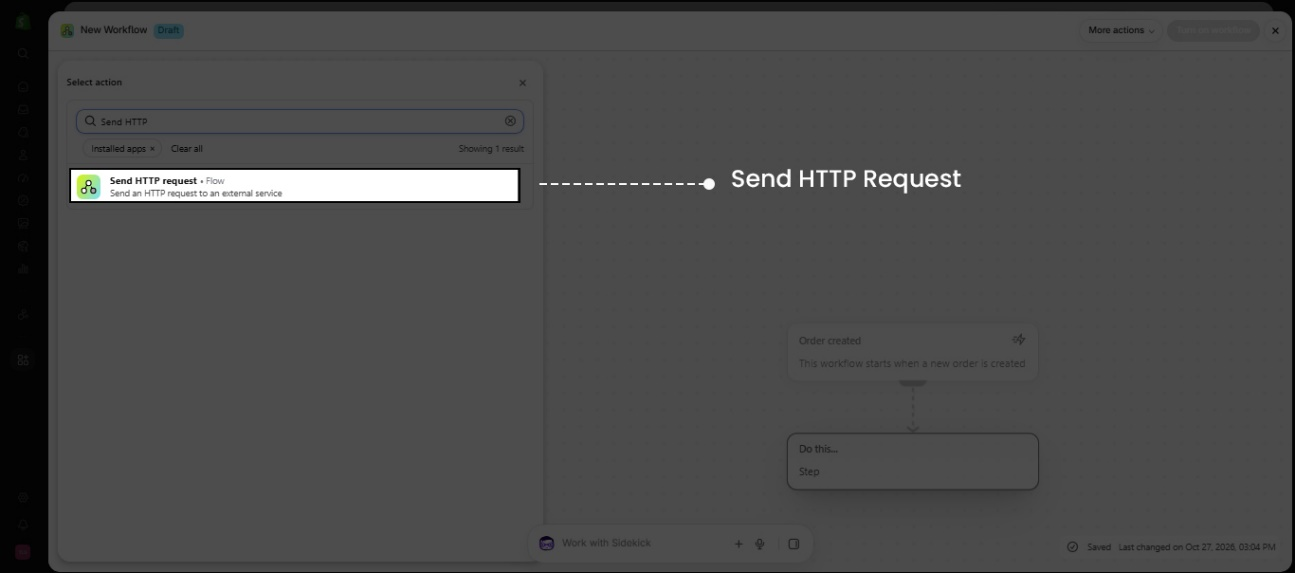
In the Action selection sidebar search bar, type Send HTTP request and choose the Send HTTP request action to enable HTTP transmission to 365CRM.
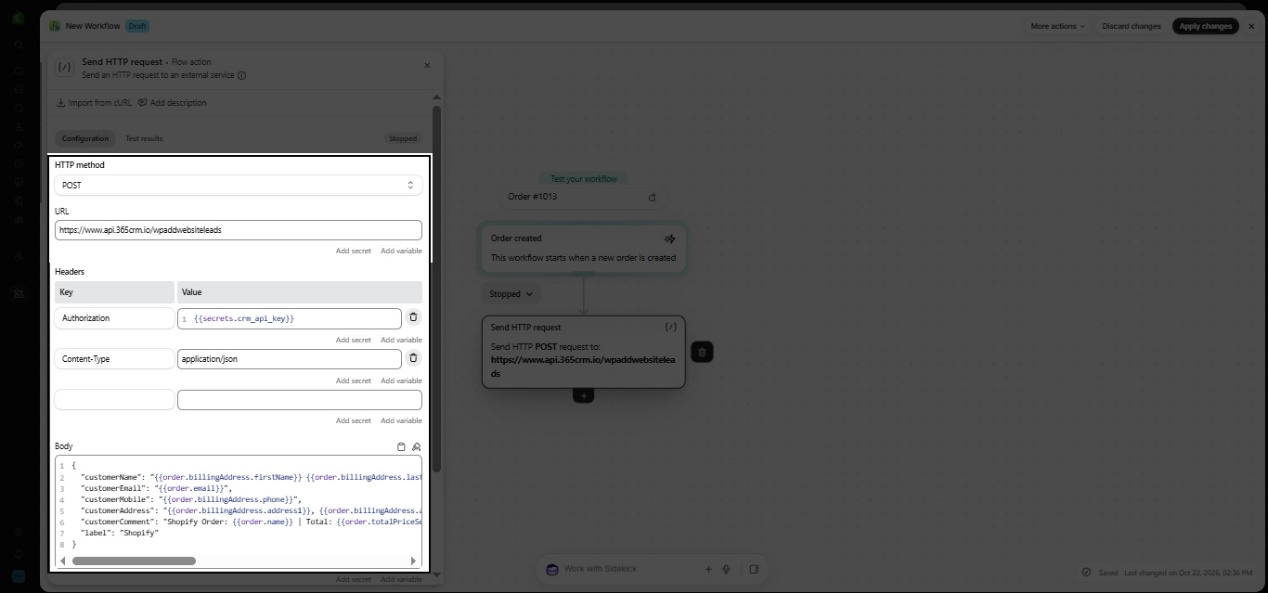
Set HTTP Method to POST, enter your 365CRM Endpoint URL, configure header Authorization with your crm_api_key secret, and fill in the required order payload in Request Body. Save and activate the workflow.
Contact Form Lead Integration Reference
Technical reference for capturing storefront inquiries from your Shopify theme into 365CRM, based on the developer guide.
Shopify Theme Schema Settings
The contact form integration reads the following configurable theme settings to authenticate and target your 365CRM instance:
| Setting ID | Label & Purpose | Default Value |
|---|---|---|
crm_endpoint |
CRM Endpoint URL | Provided by 365CRM |
crm_api_key |
CRM Authentication Key | Protected Secret |
crm_label |
Lead Attribution Label | shopify |
crm_country_code |
Default Mobile Country Code | 91 |
Payload & Normalization Rules
ContactForm-name → customerNameContactForm-email → customerEmailContactForm-phone → customerMobileContactForm-body → customerComment• 10-digit number → Prepends country code (e.g.
919876543210).• 11-digit number starting with
0 → Removes leading zero and prepends country code.• Non-digits → Stripped automatically.
Dispatched via
POST with Authorization header and keepalive: true to ensure successful transmission while native Shopify submission finishes.Need Help Connecting Shopify to 365CRM?
Connect with our solutions team to configure Shopify Flow, set up authenticated endpoints, and verify lead capture.
Frequently Asked Questions
Common questions regarding Shopify store integration with 365CRM.
crm_api_key inside Shopify Flow Settings. For the theme contact form integration, you configure crm_endpoint, crm_api_key, crm_label (default: shopify), and crm_country_code (default: 91).
fetch() request with the keepalive: true flag. It extracts customer name, mobile, email, and message to log the lead into 365CRM, while allowing normal Shopify form submission and store notification emails to proceed without interruption.
shopify, but you can configure any custom label via your theme settings under crm_label to segment leads originating from different marketing funnels or storefronts.