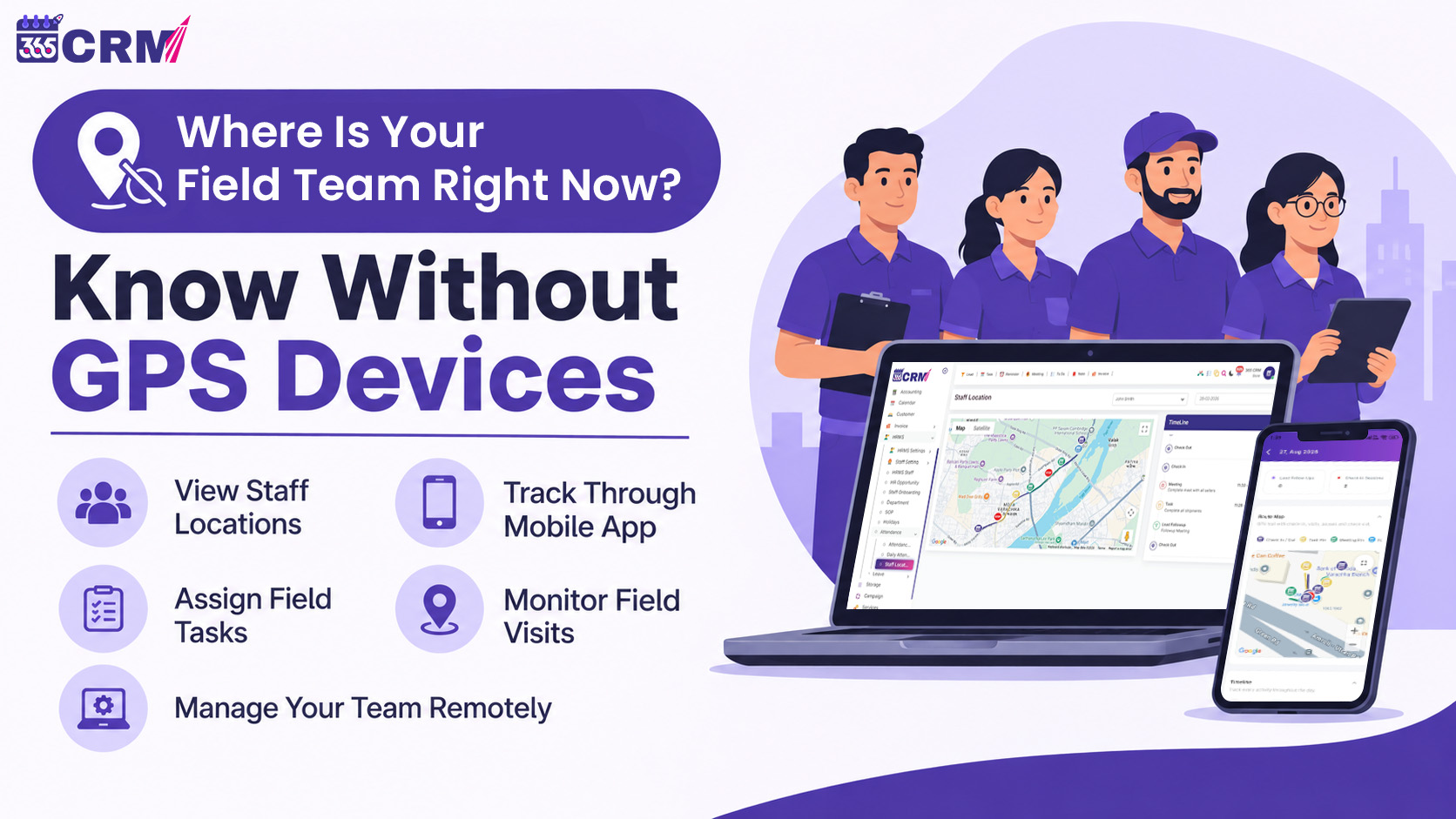
Where Is Your Field Team Right Now? Know Without GPS Devices
You can track your field team without separate GPS tracking hardware by using a mobile application that records employee locations through smartphone GPS. 365 CRM connects its Staff Mobile App with an Admin/Store Portal, allowing managers to monitor employee locations, attendance, assigned tasks, meetings and travel routes during active working sessions.
Key Takeaways
- Track field employees through their smartphones without separate GPS devices.
- Monitor employee locations through a centralized map dashboard.
- Record attendance using selfie-based Check-In.
- Assign tasks and meetings with specific locations.
- Review employee routes, travel duration and distance.
- Access daily summaries of working hours and completed tasks.
Why Do Businesses Need Field Staff Tracking?
Managing employees who work outside the office requires proper coordination. Sales representatives visit customers, service employees attend assigned jobs, and field teams travel between different locations.
Without a centralized tracking system, managers may need to contact employees individually to get updates about their activities.
Some common challenges include:
- Checking employee locations during working hours.
- Monitoring customer visits and assigned meetings.
- Reviewing employee attendance and working hours.
- Tracking travel routes and completed activities.
- Maintaining records of field employee movements.
Field staff tracking software helps businesses manage these activities through a connected system.
How Can You Track Field Employees Without Separate GPS Devices?
Businesses can use GPS-enabled smartphones to track employee locations without installing separate GPS tracking hardware.
365 CRM provides GPS-based tracking through its Staff Mobile App. Employees complete Check-In through the application, and the system automatically records their GPS location and time.
After Check-In, background location tracking continues during the active working session, provided the required permissions are enabled.
Managers can access employee location information through the Admin/Store Portal.
This allows businesses to use employees' smartphones for location tracking instead of requiring separate dedicated GPS devices.
How Does 365 CRM Field Staff Tracking Work?
Employee Check-In
Employees start their working day through the mobile application using a live selfie Check-In.
The system automatically records their GPS location and check-in time.
Background Location Tracking
After Check-In, the application continues recording location information in the background during the active working session.
Background location permission is required to record movement when employees lock their phones or use other applications.
Live Location Monitoring
Managers can view employee locations through the Admin Portal's map dashboard.
The dashboard provides filters to find employees by:
- Employee name
- Employee status
- Department
Managers can also review employee movement and route history.
Employee Check-Out
Employees must complete their assigned tasks and meetings before Clock-Out.
After Check-Out, tracking stops and the recorded movement history and working duration are saved for reporting.
How Can Managers Assign Tasks and Meetings With Location Details?
Knowing an employee's location is useful, but managers also need to understand which activities employees are performing.
365 CRM allows administrators to assign tasks and meetings with specific location pins, priorities and agendas.
Employees can access these assignments through their mobile application.
Location-Based Task Assignment
Administrators can create tasks with location details, priority levels and agendas.
Employees can view their assigned tasks and start trips directly from those activities.
Meeting Management
Managers can create meetings with specific locations and agendas.
Employees can access meeting information and start trips associated with their assigned meetings.
Trip and Route Tracking
Employees can start and end trips directly from assigned tasks or meetings.
365 CRM records:
- Starting location
- GPS route
- Travel duration
- Distance covered
Managers can review this information along with the related tasks and meetings.
How Can You Verify Field Visits With Photos and Notes?
Location records show employee movement, while visit attachments provide additional information about field activities.
365 CRM includes Work Proof Attachments that allow employees to:
- Upload visit photos.
- Add notes to completed tasks and meetings.
- Submit customer feedback.
- Attach supporting information to trips.
Managers can review these records along with the corresponding activities.
This helps maintain visit-related information within the employee's assigned work records.
What Information Can Managers Review in Daily Reports?
365 CRM provides automated daily summaries to help managers review field employee activities.
These summaries include:
| Information | What Managers Can Review |
| Working hours | Total recorded working duration |
| Completed tasks | Tasks completed by employees |
| Actual routes | Routes taken by field employees |
| Travel details | Trip duration and distance |
| Work proof | Photos and notes attached to activities |
Managers can use these records to review employee activities through the Admin Portal.
How Does 365 CRM Handle Employee Location Tracking?
Employee location tracking follows an active work-session process.
According to the 365 CRM Privacy Policy, location tracking starts when an employee taps Start Day or Check-In through the mobile application.
During the active session, the application shares location information with the company for recording visits, routes and meetings.
Background location permission is required to continue recording movement when the phone screen is locked or another application is being used.
When an employee completes Check-Out, the tracking service stops and location updates end.
Businesses should communicate their tracking policies clearly and follow applicable privacy and employment requirements.
Manage Your Field Team With 365 CRM
365 CRM Field Staff Tracking connects employee location monitoring, attendance, task assignments and travel records through its Admin/Store Portal and Staff Mobile App.
Its features include:
- Live employee location monitoring.
- Selfie-based Check-In.
- Automatic GPS location and time recording.
- Background tracking during active working sessions.
- Location-based task and meeting assignments.
- GPS trip and route tracking.
- Visit photos and notes.
- Customer feedback submission.
- Mandatory task and meeting completion before Clock-Out.
- Automated daily activity summaries.
Businesses looking to manage field employees through a mobile-based tracking system can explore 365 CRM Field Staff Tracking Software.
Conclusion
Managing field employees requires visibility into their locations, attendance, assigned tasks, meetings and travel activities.
365 CRM connects these activities through its Staff Mobile App and Admin/Store Portal. Its GPS-based tracking, selfie Check-In, task assignments, trip records and daily summaries help businesses manage field operations through one connected system.
Explore 365 CRM Field Staff Tracking Software to learn more about its features.
FAQs
Yes. 365 CRM uses GPS technology through its Staff Mobile App. Employees check in using their smartphones, allowing the system to record their locations during active working sessions.
Yes. Managers can view employee locations through the live map dashboard and review recorded movement and route history.
Yes. 365 CRM supports background location tracking during active working sessions when the required permissions are enabled.
Yes. Administrators can create tasks and meetings with location pins, priority levels and agendas.
Yes. Employees can start trips from assigned tasks or meetings. The system records starting location, GPS route, travel duration and distance covered.
Yes. Employees can upload visit photos, add notes and submit customer feedback through the mobile application.
Tracking stops when employees complete Check-Out at the end of their active working session.
No. Assigned tasks and meetings must be marked as completed before Clock-Out is allowed.