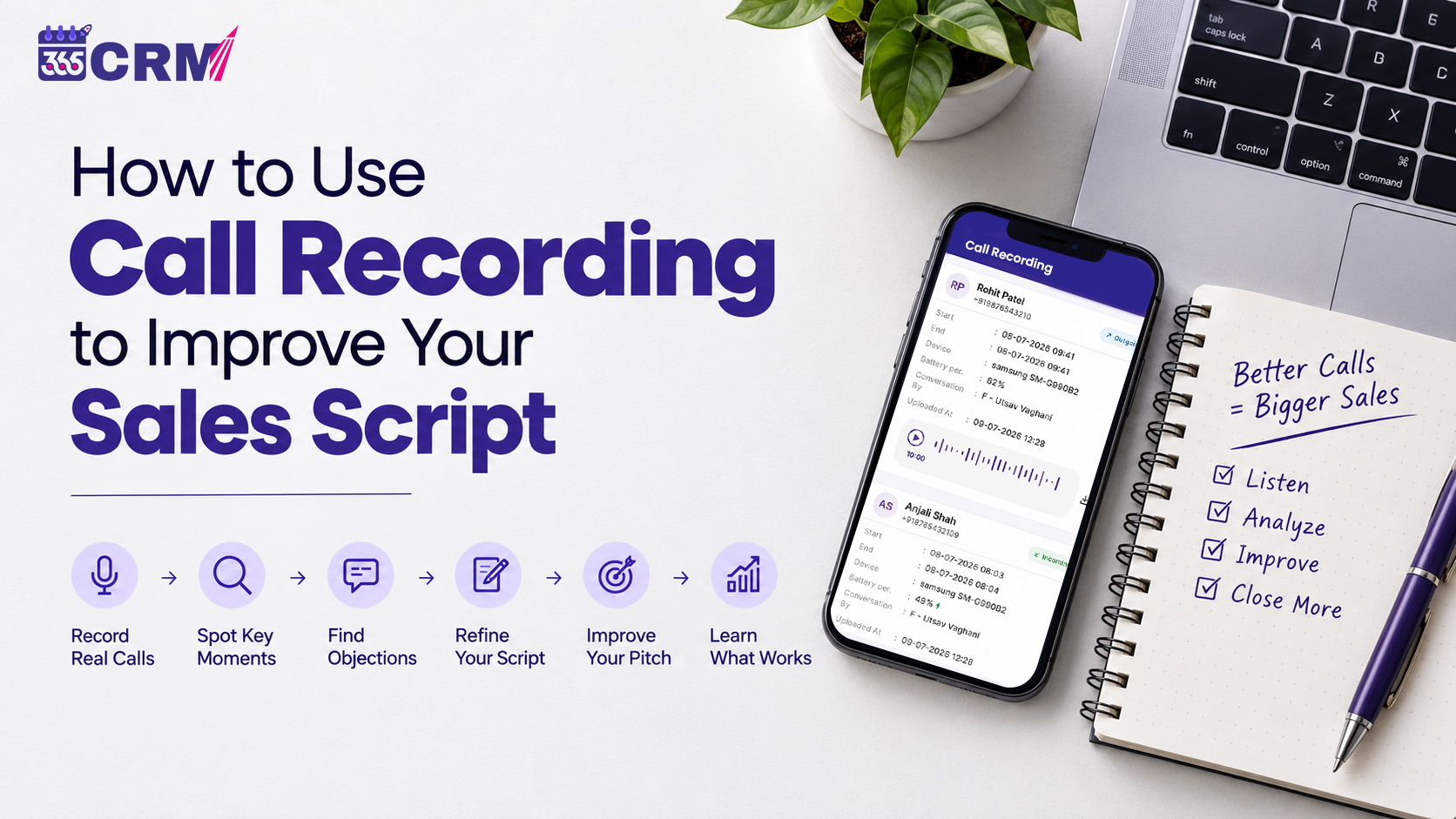
How to Use Call Recording to Improve Your Sales Script
Your best sales agent just closed a deal. The conversation was smooth, the objections were handled well, and the buyer said yes before the call ended.
Now ask yourself: does the rest of your team know exactly what that agent said?
Most sales managers cannot answer that question. They rely on verbal recaps, end-of-day summaries, and gut feeling to coach their team. The result is that every agent develops their own style, their own script, and their own way of handling pushback. Some work. Many do not.
Call recording changes this completely. When every sales conversation is captured and linked to the lead it belongs to, managers can listen to what actually happened instead of guessing. They can find what works, identify what does not, and build a better sales script based on real conversations with real customers.
This guide explains how to use call recording practically to improve your sales script, train your team faster, and close more deals.
Why Your Sales Script Needs Call Recording
A sales script written in a meeting room is based on assumptions. A sales script built from recorded calls is based on evidence.
When you listen to real customer conversations, you hear things no meeting can predict:
- The exact words customers use when they describe their problem
- The objections that come up most often, and the responses that actually resolve them
- The moment in the conversation where interest peaks or drops
- The tone and pace that keeps buyers engaged
Without recordings, this knowledge stays in the head of whichever agent happened to make the call. With recordings, it becomes something the whole team can learn from.
How 365 CRM Call Recording Works
365 CRM does not record calls itself. It works with the call recording feature already built into Android phones. When your agent makes or receives a call using their phone's default dialer, the phone records the conversation automatically. 365 CRM then detects that recording, syncs it in the background, and links it directly to the matching lead profile inside the CRM.
Here is how the process works step by step:
Step 1: The call happens on the agent's phone
The agent uses their Android phone's default dialer to call a lead. The phone's built-in call recorder captures the conversation.
Step 2: The app detects the recording
When the call ends, 365 CRM reads the call log, locates the audio file, and identifies which lead the number belongs to. This takes less than a second.
Step 3: The recording uploads automatically
The file uploads securely in the background. If the app was not open during the call, it queues the upload and completes it the next time the app is opened.
Step 4: Managers listen directly inside the app
Every recording appears inside the lead's profile in the CRM. Managers can open the lead, view the full call history, filter by date, and listen using the built-in audio player. No downloads needed.
Important notes:
Call recording in 365 CRM is available on Android only. iOS does not allow apps to access call recordings.
Call recording must first be enabled in the phone's native dialer settings. If it is switched off, no file is created.
Only calls matched to an existing CRM lead are synced. Personal calls and unknown numbers are not uploaded.
Administrators control which staff members have sync permission. No one is enrolled automatically.
5 Ways to Use Call Recordings to Build a Better Sales Script
1. Find Out What Language Your Customers Actually Use
Most sales scripts are written in product language. Customers think and speak in problem language.
A real estate agent's script might say "flexible payment options and prime location." The customer asking about the same property says they want a monthly installment that fits their budget and a location within 30 minutes of their office. These are very different ways of describing the same thing.
When you listen to recordings of successful calls, you will hear the words your customers use to describe what they want. Build those phrases directly into your script. When your agents speak the customer's language, the conversation feels more natural and the customer trusts you faster.
2. Identify the Objections That Come Up Every Time
Every product has three or four objections that appear in almost every sales call. Price is too high. Need to discuss with family. Not ready to decide right now. Already using another product.
Without recordings, each agent handles these objections their own way. Some responses work better than others, but no one knows which ones because no one is comparing.
With recordings, you can review every call where an objection led to a closed deal and every call where the same objection ended the conversation. You will quickly see which responses move the customer forward and which ones lose the deal. Turn the responses that work into a standard script section that every agent uses.
3. Find the Exact Point Where Calls Go Wrong
Some calls start well and fall apart. The customer was interested, then suddenly became distant. The agent lost the thread and could not recover.
When this happens on a live call, the agent often does not know what caused it. When it is recorded, you can replay the exact moment. Maybe the agent skipped a qualification question. Maybe they mentioned price before building enough value. Maybe they answered a technical question and gave wrong information.
Once you hear it, you can fix it. Add a step to the script. Change the sequence. Add a note about what not to say at that stage. Small adjustments based on real call data make a significant difference in how conversations progress.
4. Build a Library of Your Best Calls for New Agent Training
When a new sales agent joins your team, you typically spend hours training them verbally or asking senior agents to shadow them. This takes time away from both people.
With a library of recorded calls from your best agents, training becomes faster and more practical. New agents can listen to real calls and hear exactly how a senior agent opens a conversation, handles pushback, and moves a buyer toward a decision.
The script becomes something they have heard in action, not just read on paper. They will understand tone, pace, and structure far more quickly than from a document alone.
5. Review Winning Calls to Understand What Worked
Most sales teams review lost deals. Very few review won deals with the same attention.
When your agent closes a deal, listen to that call within 24 hours. Ask: what did the agent do differently here? Was there a question that unlocked the buyer's trust? Was there a specific moment where the objection was handled well?
Extract those moments. Add the effective phrases and techniques to the sales script. Over time, your script becomes a document that reflects your best work rather than a starting template.
How Managers Can Use Call Recording for Team Coaching
Listen Before You Coach
Most coaching conversations start with a manager asking an agent to describe the call. The agent's memory is incomplete, the details are vague, and the feedback is based on a secondhand account.
When you have the recording, you can listen to the actual conversation before the coaching session. You come in with specific observations about what worked and what did not. The coaching becomes precise and actionable instead of general.
Catch Good Work, Not Just Mistakes
Managers tend to review calls when something goes wrong. Call recordings make it just as easy to review calls when something goes right.
When an agent handles a difficult objection well or turns a hesitant lead into a confirmed appointment, listen to how they did it. Share the recording with the team. This reinforces good behavior and gives everyone a clear example of what success sounds like.
Check Whether Follow-Up Promises Were Kept
Agents often make promises during sales calls. They will send a brochure. They will confirm a visit time. They will call back on a specific date.
With call recordings linked to each lead, managers can verify whether commitments were kept. This helps protect the customer relationship and makes sure nothing slips between conversations.
What Makes 365 CRM Call Recording Practical for Sales Teams
Automatic matching to the right lead When a call happens, 365 CRM identifies the phone number and links the recording to the correct lead profile. Managers do not have to manually sort through files or figure out which call belongs to which customer.
Background sync with no manual steps The sync happens automatically after the call. Agents do not need to upload anything. Even if the app was closed during the call, the recording uploads the next time the app is opened.
Dual-SIM support Sales agents in India commonly use dual-SIM phones. 365 CRM includes dual-SIM privacy control so agents can manage which SIM's calls are synced.
Works with major Android brands 365 CRM scans the recording folders used by Xiaomi, Samsung, Vivo, Oppo, Realme, and other popular Android phones. If auto-detection does not find the folder, agents can select it manually.
Admin-controlled permissions Only staff members approved by an administrator have their calls synced. This gives businesses control over who is enrolled.
Built-in playback Managers and agents listen to recordings directly inside the 365 CRM app from the lead's profile. No external player, no file downloads, no extra steps.
Setting Up Call Recording in 365 CRM
Before recordings can sync, three things must be in place:
| Step | What to Do | Where to Find It |
| 1. Enable call recording on the phone | Turn on call recording in your Android phone's native dialer | Dialer settings or Call settings (varies by brand). If skipped, no file is created and nothing syncs |
| 2. Grant permissions in 365 CRM | Allow phone state and call log access, files and storage access, and contacts access | App permission settings on first launch. Also disable battery optimization for 365 CRM to keep background sync running |
| 3. Admin approves staff for sync | Administrator assigns call recording sync permission to the relevant team members from the backend | 365 CRM admin panel. Once approved, recordings from that device begin syncing automatically |
Sales Script Problems and How Call Recording Fixes Them
| Common Sales Script Problem | What You Hear in the Recording | How to Fix the Script |
| Agents use product language customers do not relate to | Customers rephrase the question or ask for clarification | Replace product terms with the exact words customers use in calls |
| Same objection handled differently by every agent | Some agents recover, others lose the deal at the same point | Find the response that works and add it as a standard script section |
| Calls lose energy at a specific stage | Customer tone changes or goes quiet after a particular question | Reorder the script so value is established before that moment |
| New agents take too long to get confident | Experienced agents have smooth calls, new agents sound uncertain | Use recordings of top agents as training material from day one |
| Follow-up promises are forgotten | Agent made a commitment in the call that was never acted on | Add a follow-up checklist step at the end of every call script |
| Winning calls have no documented formula | Closed deals feel like luck rather than a repeatable process | Review won call recordings monthly and extract what worked |
Building a Better Sales Script Over Time
Call recording is not a one-time exercise. The most effective sales teams treat it as an ongoing process.
Every month, review a sample of calls across your team. Look for patterns: the questions that consistently build trust, the objections that still catch agents off guard, and the stages where conversations lose energy. Update the script accordingly.
Over six months, your script will look very different from the version you started with. It will be shaped by real conversations, refined by what your customers actually respond to, and tested against the objections your specific market raises most often.
This is the difference between a sales script and a living document. Call recording is what turns one into the other.
What 365 CRM Users Say
Yashvi Donga: "365 CRM has been a game-changer for our business. The interface is user-friendly, and the features are comprehensive. It has helped us streamline our operations and improve our customer interactions significantly."
Nirmal Patel: "Excellent CRM with all the features needed for a small business. The lead management system is robust, and the follow-up reminders ensure we never miss an opportunity."
Abhay Navar: "365 CRM is a very user-friendly application. It has very useful features like lead management, follow-up management, attendance management and much more."
These are reviews from verified users of the 365 CRM platform.
Start Using Call Recording with 365 CRM
365 CRM's call recording feature works with the recording tool already on your Android phone. No additional hardware, no third-party app, and no manual file management.
Recordings link automatically to the right lead, sync in the background, and play back directly inside the CRM. Managers get full visibility into every sales conversation without disrupting how agents already work.
Visit 365crm.io to start your free trial and see how call recording can help your sales team improve faster.
FAQs
No. 365 CRM works with the call recording feature built into your Android phone's default dialer. When your phone records a call, 365 CRM detects the file, syncs it, and links it to the matching lead profile automatically.
No. 365 CRM call recording is available on Android only. iOS does not allow apps to access call recordings.
Call recording must be enabled in your Android phone's native dialer settings, and the required permissions must be granted to the 365 CRM app. Your administrator also needs to approve your account for sync from the backend.
No. Only calls from numbers that match an existing CRM lead are synced. Calls from unrecognised numbers are skipped and not uploaded.
Yes. Recordings play directly inside the 365 CRM app from the lead's profile using the built-in audio player. No downloads or third-party apps are needed.
If 365 CRM was not active when the call happened, the recording is queued and uploads automatically the next time the app is opened.