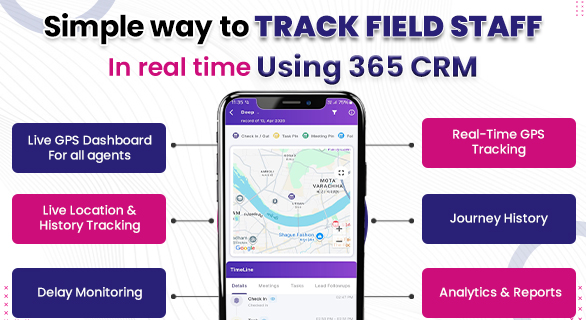
Simple way to track field staff in real time using 365 CRM
Managing field staff has always been a challenge for businesses. When employees are working outside the office, it becomes difficult to know where they are, what work they are doing, and whether tasks are completed properly. Manual tracking methods often lead to confusion, delays, and lack of transparency.
This is where the ability to track field staff in 365 CRM becomes a powerful solution. Instead of relying on calls or manual updates, businesses can now monitor staff activities in real time with proper tracking and visibility.
Why Field Staff Tracking Is Important
For businesses that depend on field work such as sales visits, client meetings, or on-site services, tracking staff activity is essential. Without a proper system:
- Managers do not know the exact work status
- Staff updates may not be accurate
- Time is wasted in follow-ups
- Productivity becomes difficult to measure
With the ability to track field staff in 365 CRM, businesses get clear visibility of staff performance and daily activity without depending on manual reporting.
How Admin Can Control and Assign Tasks
The system is designed in a way that gives full control to the admin. Only the admin can give permissions to staff members for tracking and task execution.
To assign a task:
- Go to the productivity section
- Select task option
- Click on the plus icon on the right side
- Create a new task for the staff
If the task needs to be assigned to an existing staff member:
- Select the staff
- Click on edit option
- Assign the task
The most important setting here is the Location Required option. To track field staff in 365 CRM, this option must be turned on. Without enabling this, location tracking will not work.
How Live Tracking Works in Mobile
One important thing to understand is that live tracking works through mobile. While data can be viewed on the system, the actual tracking activity happens from the staff’s mobile device.
Once the admin assigns the task and enables tracking, the staff can start working on it.
When staff opens the assigned task:
- They get a Start option
- After clicking Start, they see a Check In option
- This must be enabled when the work begins
After check-in, the staff is required to upload a live image. This confirms that the work has started. From this point, the system begins to track field staff in 365 CRM with location and activity details.
Activity Tracking with Proof
One of the strongest parts of this system is that it does not rely only on location. It also captures real work activity.
During the task:
- Staff can upload images
- Notes can be added
- Work progress can be recorded
This ensures that the admin is not just seeing location, but also actual work proof.
Because of this structured process, businesses can confidently track field staff in 365 CRM without worrying about false updates or incomplete work.
Task Completion and Checkout Process
The system ensures that tasks are completed properly before ending the activity.
Until the task is completed:
- Staff cannot check out
- Staff cannot log out
To finish the task:
- Staff must click on End option
- Upload another image
- Add notes if required
Without uploading the image, the task cannot be completed. This ensures accountability and proper work tracking.
Once the task is completed, staff can proceed to checkout. This complete process helps businesses accurately track field staff in 365 CRM from start to finish.
How Admin Can View Staff Activity
All the activity performed by the staff is visible to the admin in a structured way.
To check staff tracking details:
- Go to HR section
- Open Attendance
- Select Staff Location
From here, the admin can:
Select a specific staff member
- View task activity
- Check uploaded images
- See location tracking
- Review notes added during work
This makes it easy to monitor every assigned task. The system ensures that admin can clearly track field staff in 365 CRM without confusion.
Meeting and Location Tracking Together
If the admin provides permission, the system can also show meeting-related activity along with location tracking.
This means:
- Admin can see where the staff is working
- Admin can also track meeting activity
- Both location and work updates are visible together
This gives a complete view of field operations, helping businesses manage teams more effectively.
Benefits of Using 365 CRM for Field Staff Tracking
Using a proper system instead of manual tracking offers multiple advantages:
- Real time visibility of staff location
- Accurate tracking of work activity
- Proof based task execution
- Reduced manual follow-ups
- Better accountability
With all these features, businesses can easily track field staff in 365 CRM and improve overall performance.
A Simple Yet Effective Solution
Field staff management does not have to be complicated. With the right system, everything becomes simple and structured.
The ability to track field staff in 365 CRM ensures that:
- Work is monitored in real time
- Tasks are completed properly
- Managers have full control
- Staff remains accountable
This makes it easier for businesses to manage field operations without extra effort.
FAQs
Enable Location Required while assigning tasks and track activity from the HR attendance section.
No, live tracking works through mobile devices.
Yes, staff must upload images to start and complete tasks.
Admin can see location activity of assigned tasks from the system.
No, tasks must be completed before checkout and logout.